
This post contains affiliate links. If you purchase through our links, we may earn a commission at no extra cost to you.
Coolify’s own docs say you need 2 GB of RAM. A few paragraphs further down, the same page says 1 GB is a fine place to start if money is tight. Hosting blogs add their own numbers, anywhere from 380 MB to 1.2 GB, and none of them show where those numbers came from. So we installed Coolify v4.3.23 on a Coolify 1GB RAM VPS test box (Vultr’s $5 plan), deployed two apps, built one of them on the server, and then tried turning swap off. Here’s what it used, what broke, and when 1 GB is actually enough.
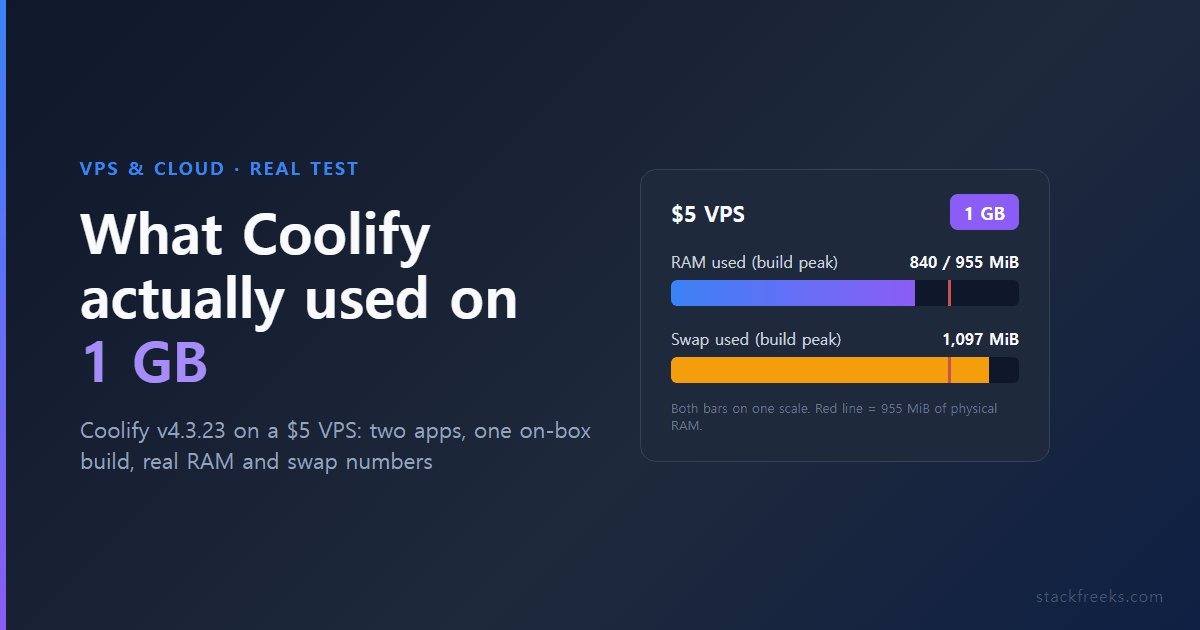
The Short Answer: Coolify Runs on 1 GB RAM, but Only Because of Swap
Coolify installed cleanly, stayed healthy, deployed a prebuilt image in 22 seconds and even built a small Node.js app on the box. But it never fit in physical RAM alone. Two minutes after install, before anyone had logged in, 323 MiB of it was already sitting in swap. When we tried to turn swap off with two tiny apps running, the kernel OOM-killed the swapoff command itself.
| What we measured (1 vCPU / 1 GB, 2026-09-26) | Result |
|---|---|
Install time, curl | bash to healthy dashboard | 173 s |
| Containers running before first login | 6 |
Container RAM at idle (docker stats sum) | 223.9–309.9 MiB |
Host RAM used at idle (free -m) | 578 MiB, plus 323 MiB in swap |
Deploy a prebuilt nginx:alpine image | 22 s |
| Build + deploy a small Node app with Nixpacks | 489 s, success |
| Build extremes (separate, over 425 one-second samples) | 840 MiB peak used, 115 MiB lowest available, 1,097 MiB peak swap |
| Dashboard health checks failed during the build | 0 of 425 |
swapoff -a with Coolify + 2 apps running | OOM-killed after 26 s |
| Disk used after install + one build | 5.9G → 9.3G → 12G |
If you run small static sites or prebuilt containers and your provider gives you swap, 1 GB works. If you plan to build real framework apps on the same box, it’s the wrong size.
Coolify Minimum Requirements: What the Docs and the Installer Say About 1 GB
The official installation page lists 2 CPU cores, 2 GB RAM and 10 GB of free disk as the minimum. Then its “Hardware resource planning for budget users” section says Coolify “can run on smaller servers (for example: 1 CPU core, 512 MB RAM, 4 GB disk), but this is not recommended,” and “if cost is a concern, start with a server 1 CPU core and 1 GB RAM.” So 2 GB is a recommendation, not a hard floor.
The installer doesn’t settle the question either, because it never looks at RAM. Reading the 1,057-line install.sh shows no check of free or /proc/meminfo. It only checks disk: it wants 30 GB total and 20 GB free. On our 25 GB plan it printed both warnings, paused, and kept going:
WARNING: Insufficient total disk space!
WARNING: Insufficient available disk space!
Sleeping for 5 seconds.
Nothing in the output mentioned memory. So a 1 GB server will install without complaint, and the first sign of trouble shows up later, under load.
There’s also a disk mismatch worth knowing about: the docs say 10 GB free, the installer warns under 30 GB total, and DigitalOcean’s Marketplace listing asks for 30 GB. Our numbers further down suggest the installer’s figure is the realistic one once you start building.
What Coolify Actually Used on Our 1 GB RAM VPS
Test setup: 2026-09-26, Vultr Tokyo, vc2-1c-1gb Cloud Compute plan ($5/month, 1 vCPU, 1 GB RAM, 25 GB SSD; free reports 955 MiB total), Ubuntu 24.04.5 LTS, Coolify v4.3.23, one run of about 30 minutes. If you want to repeat it, the $5 Vultr Cloud Compute plan is the exact box we used.
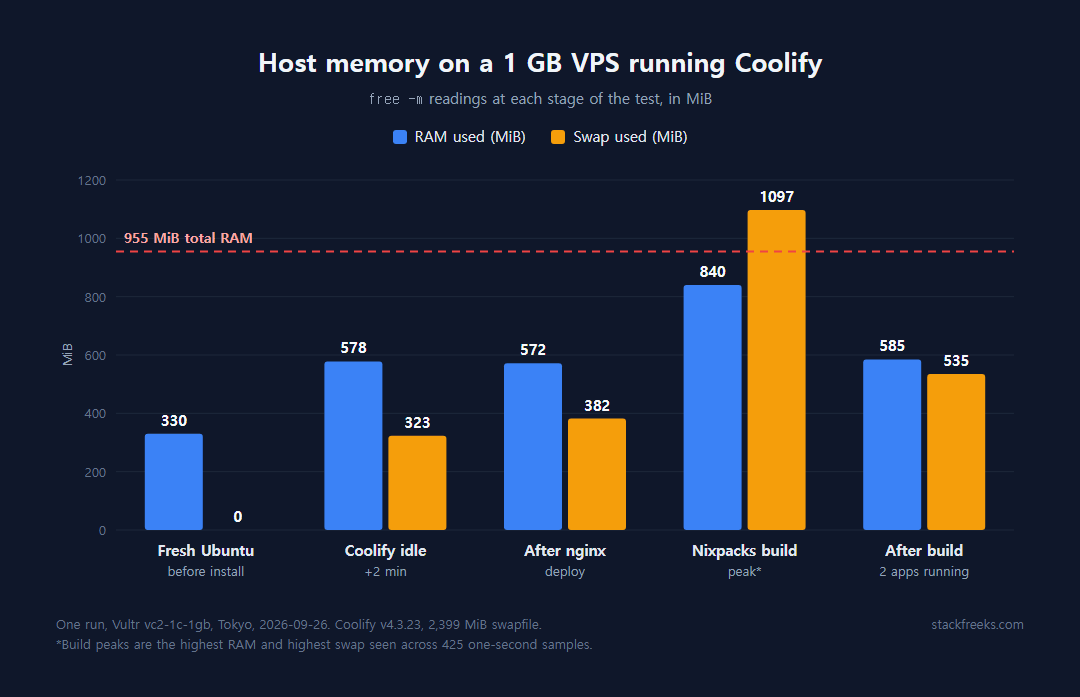
Before installing anything, the fresh image already used 330 MiB of RAM and had a 2.3 GB swapfile enabled (/swapfile file 2.3G). That swapfile turns out to matter a lot.
We ran the official one-liner, timed it, and polled the health endpoint:
start=$(date +%s)
curl -fsSL https://cdn.coollabs.io/coolify/install.sh | bash
echo "install_seconds=$(( $(date +%s)-start ))"
curl -s -o /dev/null -w "%{http_code}" http://127.0.0.1:8000/api/health
The installer finished in 173 seconds, including 56 seconds to install Docker 29.8.1, and /api/health already returned 200 by the time it exited. Then we measured with docker stats --no-stream, free -m and swapon --show at 2 and 10 minutes after the dashboard came up, without logging in.
Six containers start before you log in
Some tutorials list four Coolify containers. We counted six, all started on their own: the Traefik proxy and the Sentinel metrics agent come up automatically alongside the app, database, Redis and the realtime server.
| Container | +2 min | +10 min |
|---|---|---|
| coolify (Laravel/PHP app + queue workers) | 151.4 MiB | 138.8 MiB |
| coolify-proxy (Traefik v3.6) | 93.16 MiB | 18.55 MiB |
| coolify-realtime (Soketi websockets) | 29.21 MiB | 26.77 MiB |
| coolify-db (PostgreSQL 15) | 22.67 MiB | 28.41 MiB |
| coolify-sentinel | 9.422 MiB | 5.465 MiB |
| coolify-redis | 4.766 MiB | 5.922 MiB |
| Sum | 309.9 MiB | 223.9 MiB |
After we registered the admin and loaded the dashboard in a browser, the coolify container went to 163.4 MiB and the sum to 279.0 MiB. Inside it, two PHP-FPM workers sat at 45 MB each and the Horizon queue worker at 77 MB.
The host view tells a different story
Those container numbers look comfortable. The host didn’t. At both +2 and +10 minutes, free -m showed 578 MiB used and 377 MiB available, and swap usage had already climbed to 323 MiB (326 MiB at +10 min). The biggest swapped processes were Coolify’s own: the Soketi realtime server (about 24 MB) and three PHP processes at roughly 20–21 MB each.
In other words, the kernel had already pushed a chunk of Coolify’s working set out to disk just to keep the rest in RAM, and that was before a single app existed. docker stats doesn’t show swapped memory, which is why the container sum looks so much smaller than the real footprint. (Our post on Docker container memory limits explains how Docker counts memory.)
Idle CPU was fine: vmstat showed the vCPU 92–98% idle most of the time, with one burst of about 3 seconds where user CPU hit 44–82%.
How our numbers compare to what’s circulating
The published estimates aren’t necessarily wrong. They’re measuring different things.
| Claim | Source | What it matches on our box |
|---|---|---|
| 750 MB–1.2 GB “platform overhead” | MassiveGRID (2026-02-26), PerLod (upd. 2026-08-18) | Includes OS and Docker. Our host had 578 MiB in RAM plus 323 MiB in swap, about 900 MiB in total, inside that range |
| “About 1 GB” | LearnWithHasan (upd. 2026-08-11) | Close to the RAM + swap total, not to what fits in RAM |
| 500 MB–1 GB | devops-daily (2026-04-04) | Spans both our container sum and host total |
380 MB baseline (320–420 MB, via htop) | NextGrowth (upd. 2026-09-03), 6 production boxes | Nearest to our container sum (224–310 MiB), but measured on bigger servers where nothing gets swapped |
None of the first three sources say how they measured. NextGrowth does, but not on a 1 GB box. The takeaway: Coolify’s containers use roughly 250–300 MiB, and on a 1 GB server the whole stack only fits because swap is absorbing the rest.
Deploying Two Apps on the 1 GB Box: 22 Seconds vs. 8 Minutes
We deployed two apps through Coolify’s normal deployment pipeline (triggered via its API) to see the difference between pulling an image and building one.
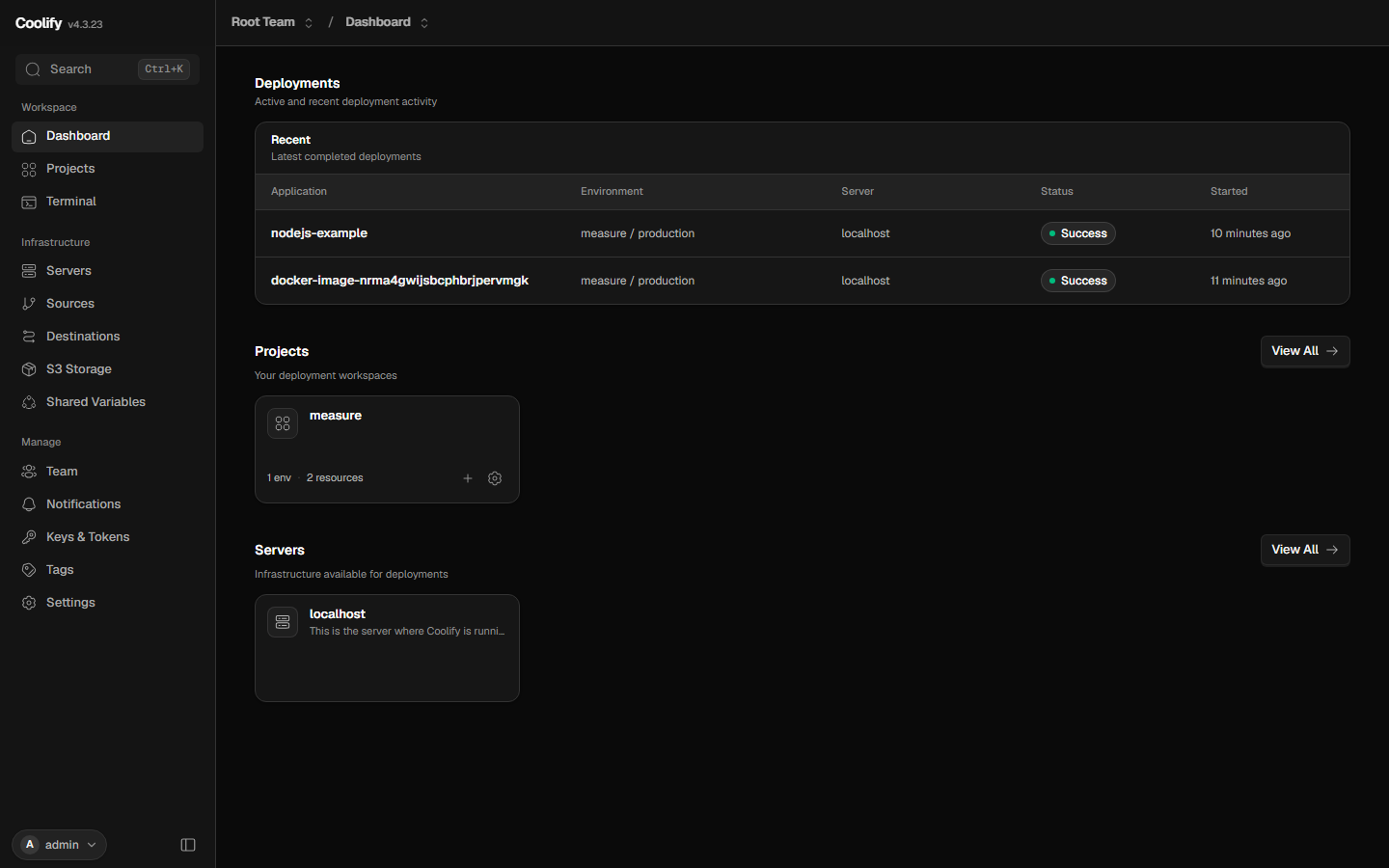
Deploy A: a prebuilt nginx:alpine image. Finished in 22 seconds. It answered through Traefik with HTTP 200 in 0.063 s, and the container used 2.719 MiB. Host RAM afterwards: 572 MiB used, 383 MiB available, swap up to 382 MiB. On 1 GB this is the painless path.
Deploy B: a Node.js app built on the box. We pointed Coolify at the nodejs folder of the official coollabsio/coolify-examples repo with the Nixpacks build pack. It worked, but slowly: 489 seconds end to end, with the Docker image build alone running from 05:28:40 to 05:36:27 UTC. The Coolify UI logged it as 08m 10s. The app then responded with {"hello":"from nodejs #2"}.
During that build we sampled free -m and the dashboard’s /api/health about once a second (425 samples):
| During the Nixpacks build | Value |
|---|---|
| Peak host RAM used | 840 MiB |
| Lowest available RAM | 115 MiB |
| Peak swap used | 1,097 MiB (377 MiB at build start) |
| Health checks that failed | 0 of 425 |
| Average / worst health latency | 0.112 s / 0.776 s |
| OOM-killer events | 0 |
The good news is that the dashboard never went down. The bad news is where the memory went: docker stats never showed more than 98.7 MiB for Coolify or 71.3 MiB for the new app container, because BuildKit’s build memory isn’t attributed to any container. Only the host numbers caught it, and they show the build leaning hard on swap.
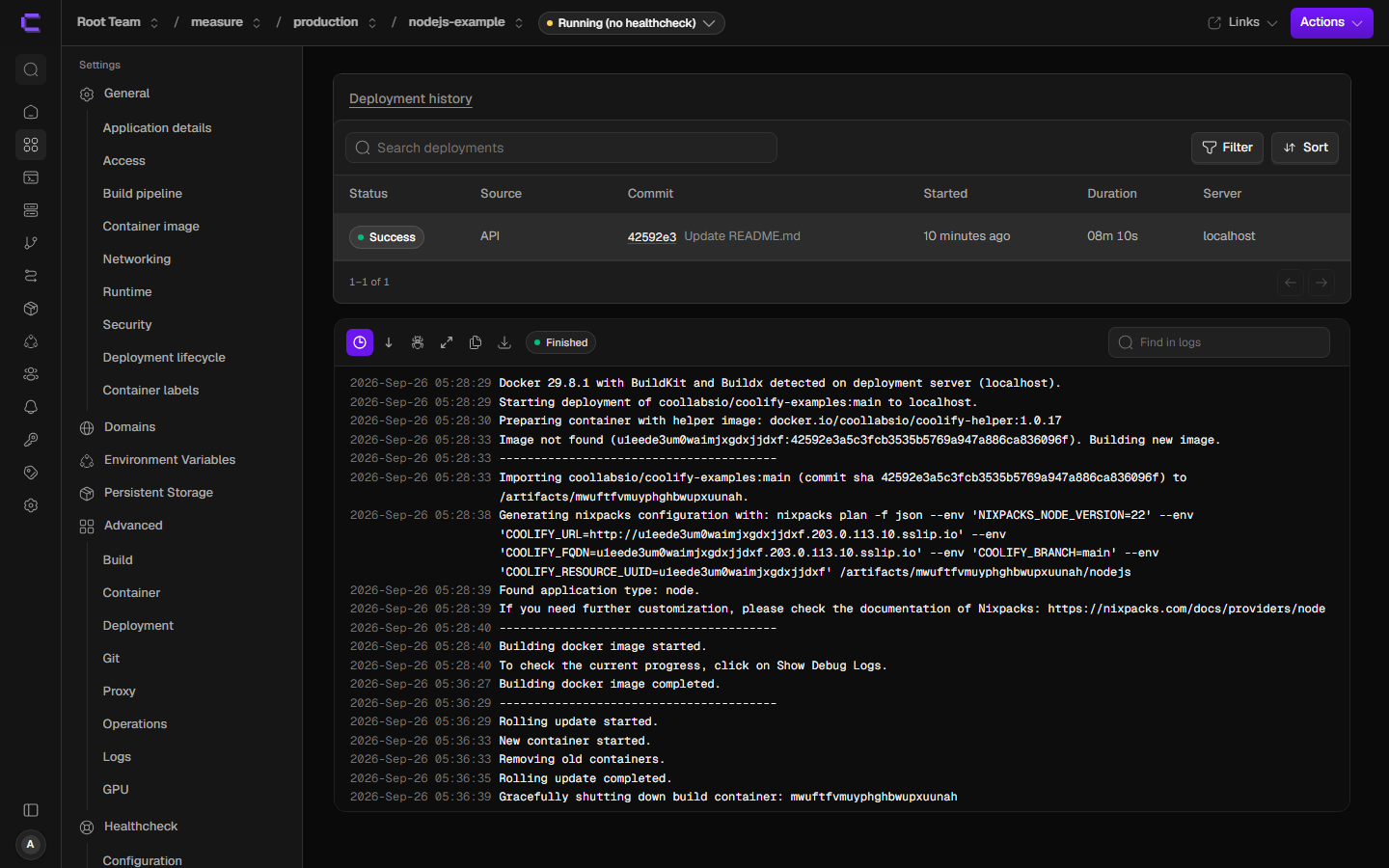
After both deploys, with Coolify plus two apps running, the host sat at 585 MiB used, 370 MiB available and 535 MiB of swap. The Node app itself used 49.58 MiB.
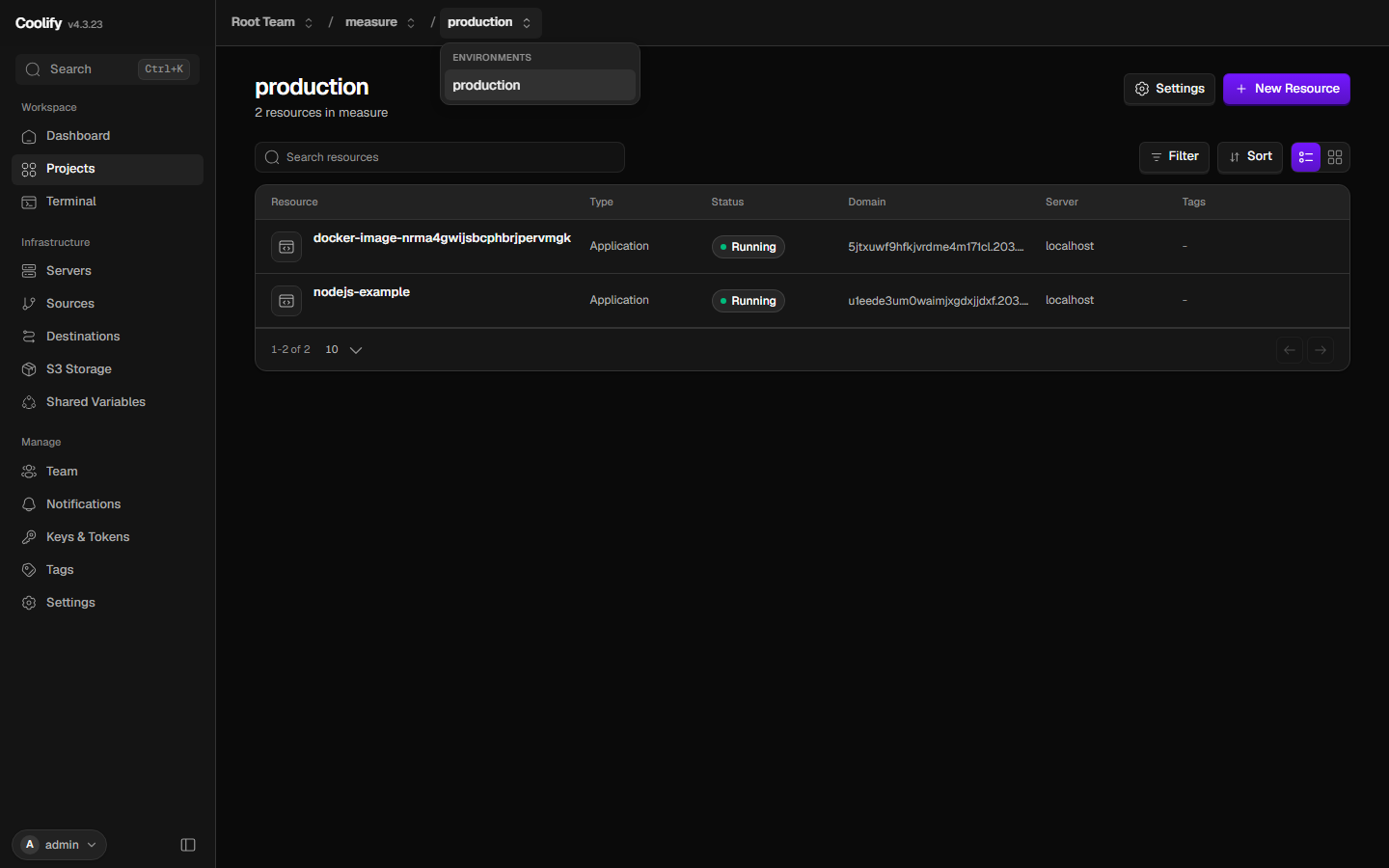
Keep the scale in mind. This was a tiny example app. GitHub issue #6656 reports a Next.js rebuild using about 3.6 GB of RAM and making the Coolify dashboard unreachable, and that was on an 8 GB server with no swap. A small Node app building fine on 1 GB doesn’t mean your app will.
Coolify Swap on 1 GB: Turning It Off Killed the Command
Not every provider ships a swapfile on its images the way Vultr does, so we wanted to see what a no-swap 1 GB box looks like. The plan was to run swapoff -a and rebuild the Node app. We never got to the rebuild.
With Coolify and both apps running (582 MiB used, 373 MiB available, 431 MiB in swap), swapoff -a ran for 26 seconds and was then killed by the kernel:
swapoff_exit=137 swapoff_seconds=26
Out of memory: Killed process 55057 (swapoff)
Right after, the host showed 915 MiB used and just 40 MiB available. Swap stayed on, all eight containers survived, and /api/health still answered 200. But memory pressure, which was 0.00 at idle, jumped to some avg10=38.64 and full avg10=26.14 in /proc/pressure/memory, meaning processes were regularly stalled waiting for memory.
That’s the clearest answer our run gives: with Coolify and two small apps, the working set doesn’t fit in 955 MiB of RAM without swap. On a provider with no swapfile, expect the OOM killer instead of a slow build.
So before installing Coolify on any 1 GB server, check:
swapon --show
free -m
If swapon --show prints nothing, add a swapfile first. You can work out a sensible size with our free Linux swap calculator. Our run peaked at 1,097 MiB of swap, so anything under 1 GB would have been too small for the build.
Disk: The 25 GB Plan Fills Up Before You’d Expect
RAM gets the attention, but disk is what the installer actually warns about, and our numbers show why.
| Stage | Disk used (of 23G) |
|---|---|
| Fresh Ubuntu | 5.9G |
| After Coolify install | 9.3G |
| After one small Nixpacks build | 12G (11G free) |
The install pulled seven images totalling 3.134 GB. The biggest were coolify-realtime (998 MB), coolify (742 MB) and coolify-helper (652 MB). Then one tiny Node build added a 1.04 GB app image plus 1.053 GB of build cache. A handful of builds on the 25 GB plan could fill the disk, so prune old images and build cache regularly, or don’t build on this box at all.
Lock Down Port 8000 and the Registration Page Right After Install
This part has nothing to do with RAM, but it’s the thing most likely to bite you on day one.
Coolify’s first visitor to http://<ip>:8000 gets a “Create the root account for this instance” page, and the docs warn that whoever gets there first becomes admin with root access to your server. The installer accepts ROOT_USERNAME, ROOT_USER_EMAIL and ROOT_USER_PASSWORD to pre-create that account. We passed all three. The installer printed “Setting predefined root user credentials from environment”, yet no user existed afterwards: visiting /login redirected to /register. The registration page stayed publicly reachable for about 11 minutes, from the health check passing at 05:15:50 until we registered at 05:26:36 UTC.
We saw this once, on v4.3.23. The .env file ended up with the ROOT_* keys twice (empty copies first, filled copies after), which is a likely cause, but we haven’t confirmed it. Either way, don’t rely on the environment variables alone:
- Register the admin account immediately after the installer finishes.
- Or restrict port 8000 to your own IP before you run the installer. Our free firewall rule builder can generate the
ufwrules, and our Vultr firewall setup guide covers doing it at the provider level.
Right after install, Coolify was listening on ports 80, 443, 6001, 6002, 8000 and 8080 on all interfaces. The docs say 8000, 6001 and 6002 can be closed once the dashboard sits behind a domain.
What This Test Doesn’t Tell You
This was one run, in one region (Tokyo), on one plan, over about 30 minutes. We didn’t measure how idle memory drifts after days of uptime, log growth or backups. The build test used a deliberately small example, and our per-second sampling ran on the same single vCPU, so it added a little load of its own. Every number came from Vultr’s image with its 2.3 GB swapfile; the no-swap rebuild never happened because swapoff was killed first.
Other people’s reports fill in some of the gaps. A user in GitHub Discussion #4661 describes a single Java service grabbing 1 GB and taking down every other service plus SSH. And GitHub issue #10676 (open since 2026-06-15) says memory limits set in the panel aren’t enforced on Docker Compose resources, so you can’t count on capping a greedy app from the Coolify UI.
Run Coolify on 1 GB for Prebuilt Images; Pay for 2 GB If You Build
Here’s how the options stack up, using Vultr’s two smallest Cloud Compute plans and Coolify’s hosted control plane:
| Option | Price | RAM / disk | Fits |
|---|---|---|---|
Vultr vc2-1c-1gb | $5/mo | 1 GB / 25 GB SSD | Coolify + a few prebuilt containers or static sites, with swap on |
Vultr vc2-1c-2gb | $10/mo | 2 GB / 55 GB SSD | Coolify’s documented minimum; room for on-box builds and a small database |
| Coolify Cloud | $5/mo (includes 2 servers) | Uses your own servers | Moves the control plane off your VPS, so all 1 GB goes to apps |
Prices last verified: 2026-09-26.
A Coolify 1GB RAM VPS works if you deploy prebuilt Docker images or static sites, you have at least 1–2 GB of swap enabled, and you can live with builds taking minutes. Deploying from an image took 22 seconds on our box and barely moved the memory needle. Build images in CI or on a separate build server (Coolify supports this natively) and the 1 GB box only has to pull and run them.
It’s the wrong choice if you want to build Next.js or similar framework apps on the server, run a database for real traffic next to Coolify, or your provider gives you no swap. Our tiny Node build already pushed swap past 1 GB. A heavier build will be slower, and without swap it will likely get OOM-killed.
For most people who want Coolify to build straight from Git, the sensible move is the 2 GB Vultr plan at $10/month: it matches the official minimum and more than doubles the disk, which our build-cache numbers say you’ll need. If you’d rather keep the $5 server, put Coolify’s control plane on Coolify Cloud instead and let the whole gigabyte go to your apps. And if you’d like to compare this with a lighter workload, our Meilisearch 1 GB test ran on the same plan and fit with room to spare.